
Barcodes and QR codes on your phone and watch
Save a barcode or QR code from a photo, then show it full-screen on your iPhone or Apple Watch. Tested with public transport and ferry tickets.
Why Barcode Ticket?
Show it on your watch
Tap a ticket on your watch for a full-screen code. The screen stays on when you lower your wrist, and it brightens so scanners can read it.
Import from a photo
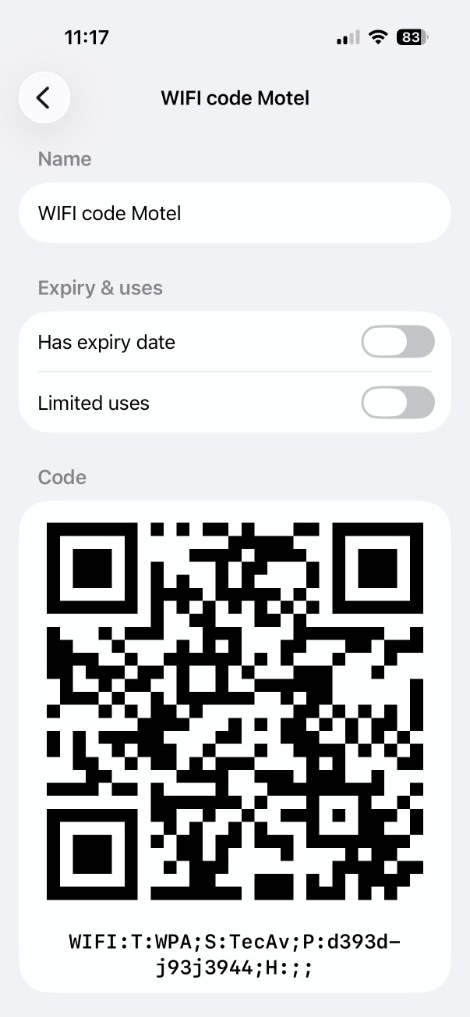
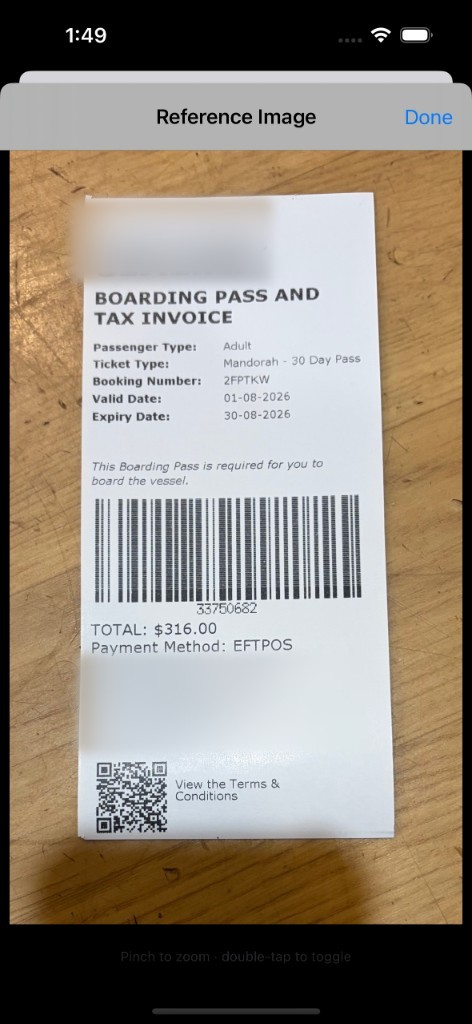
Take or choose a photo of the code. The app finds QR, Code 128, PDF417, Aztec, and more, then draws a sharp copy for the watch.
Works offline on the watch
Once a ticket is on the watch, you do not need the phone nearby.
Swipe between tickets
Keep more than one ticket on the watch. Swipe to change. Hold the code to see the photo you imported.
See it in action
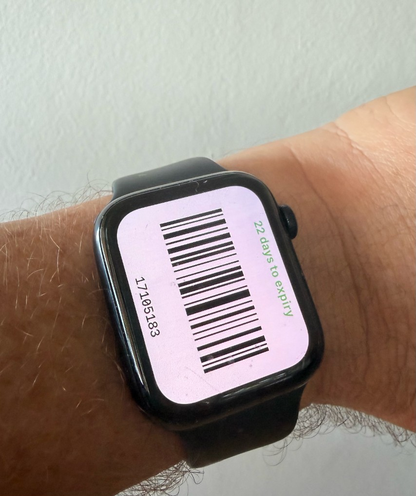
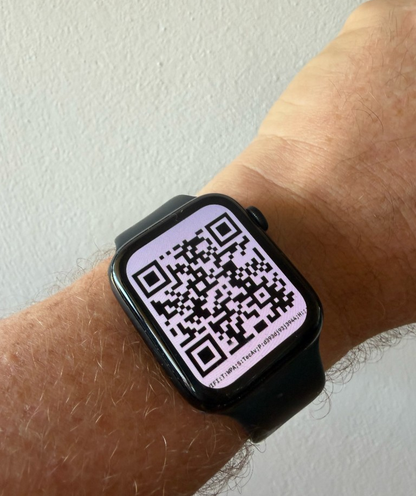
On the iPhone
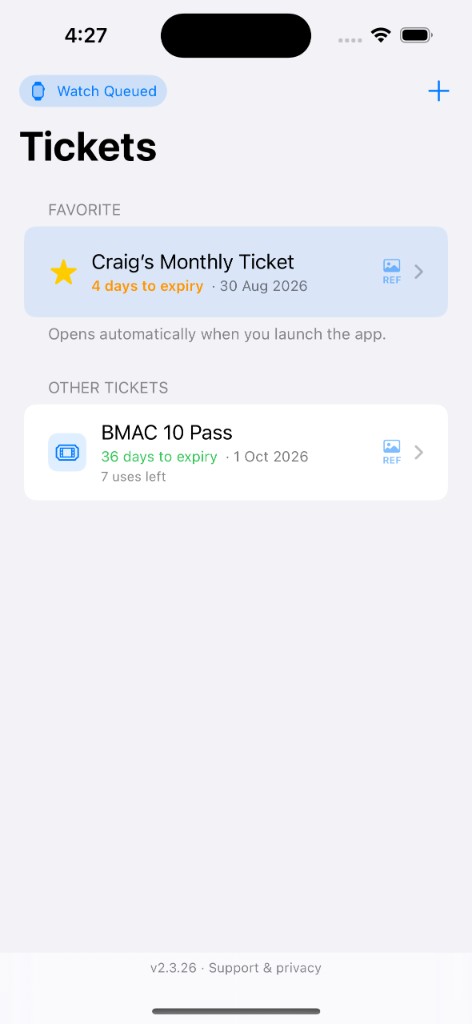
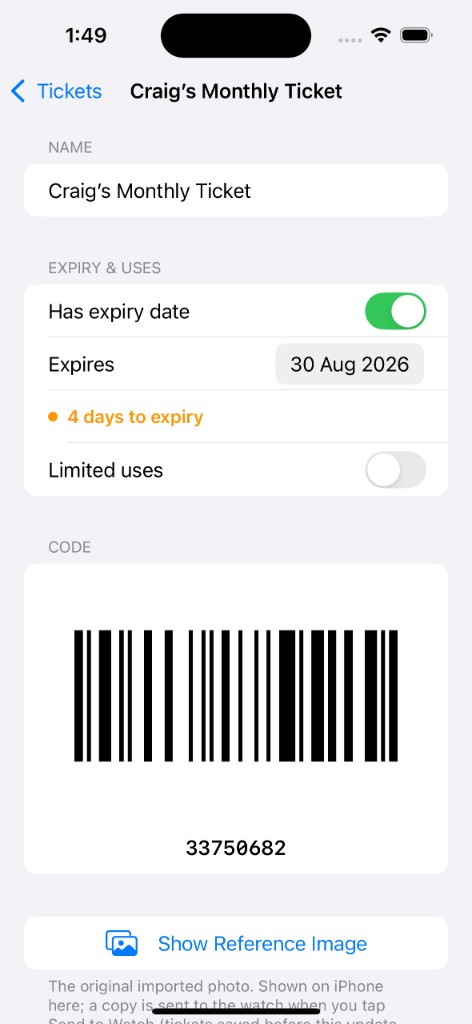
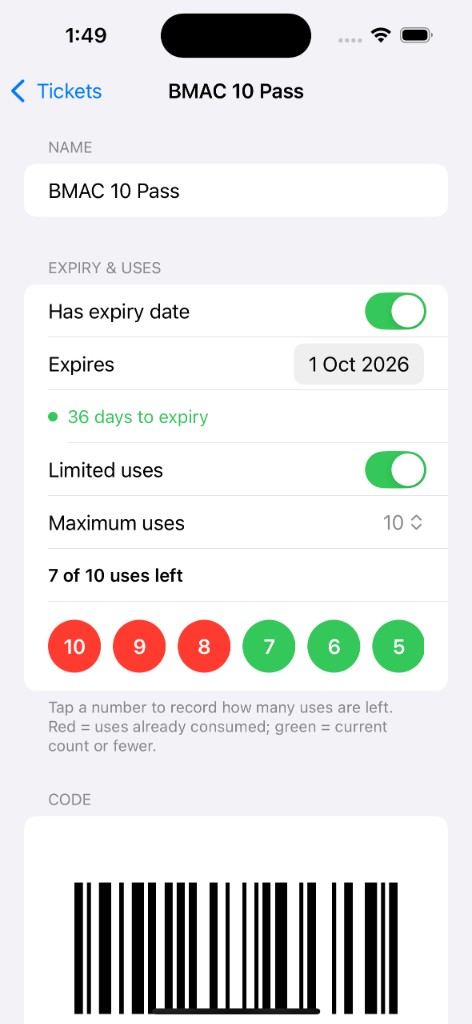
- Import from a photo or restore a backup file
- Add an expiry date or a limited-use count
- Keep a reference photo with each ticket
- Save an off-device backup in case you replace or lose your phone
- The phone stays in the same orientation while you show a code
Supported barcode formats
| Format | Detect from photo | Display on watch |
|---|---|---|
| QR Code | Yes | Redrawn, sharp |
| Code 128 | Yes | Redrawn, sharp |
| PDF417 | Yes | Redrawn, sharp |
| Aztec | Yes | Redrawn, sharp |
| EAN-13 | Yes | Cropped from the photo |
| Code 39 | Yes | Cropped from the photo |
Requirements
iPhone running iOS 18 or later. Apple Watch running watchOS 11 or later is optional, but recommended if you want the code on your wrist. The iPhone and watch must be paired. No account, no cloud — tickets stay on your devices.
Barcode Ticket stores barcodes and QR codes you already have. It is not a certified boarding-pass or ticketing system, and it is not a substitute for Apple Wallet or the issuer’s official app.