
Quickstart — for pilots
If your operator set the drive up, there is nothing to configure. The whole job is one tap and a short wait.
-
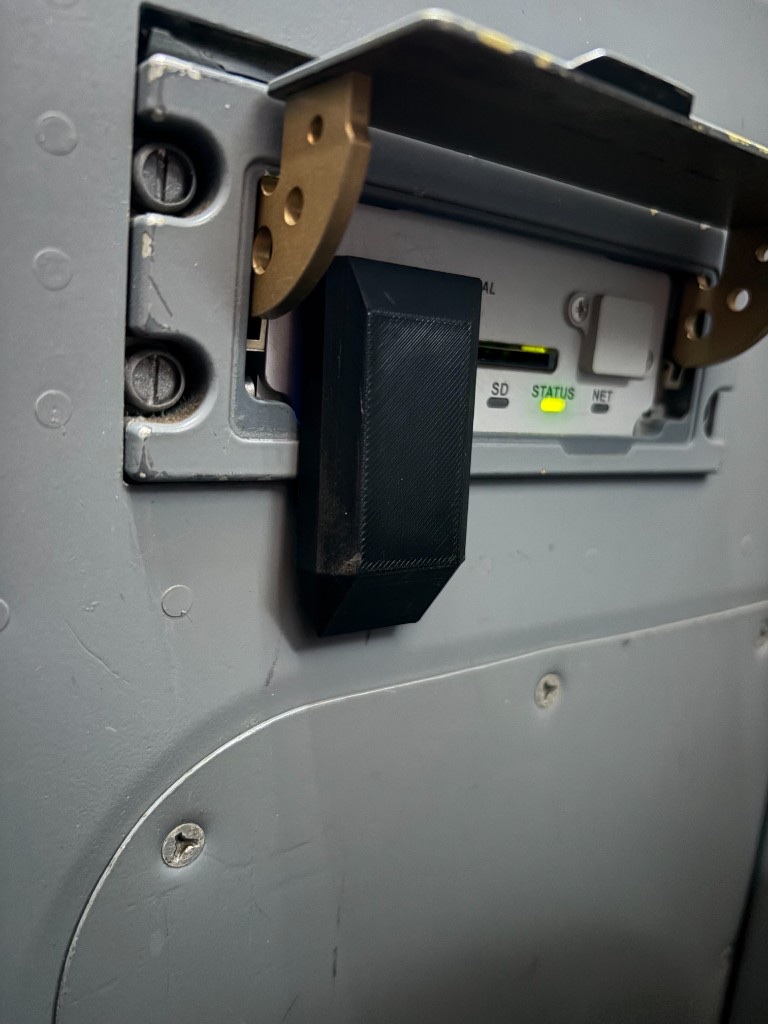
The drive is already in the aircraft
Flux Drive lives in the FMS USB port and powers up with the aircraft. No lights, no buttons — a blank volume until you send something to it.
-
Get the company profile
Import your operator's company profile into Time and Fuel Aviation (you have probably done this already). The profile quietly carries the key that lets your phone talk to the operator's drives — you never see or type it.
-
Plan the flight
Build the day as usual in Time and Fuel. When the route is ready, open the share options and choose the FMS transfer.
-
Send to Flux Drive
Tap Send to Flux Drive from anywhere in the cockpit with Bluetooth on. The app finds the drive, authenticates, and streams the plan — about ten seconds, with progress on screen.
-
Load the FMS
The FMS sees its drive briefly unplug and come back with the new plan. Load it from the FMS data page as you always have, then verify the plan in the FMS before flight — waypoints, distances, tracks.
-
Mind the ten minutes
For security the plan erases itself ten minutes after the FMS stops reading it, and whenever the drive powers up. As long as the FMS is actively loading — even retrying — the plan stays. If it has expired, just send it again.
If you are asked for a pairing code
- That means neither your phone nor your active profile holds the key for this drive — common for private owners without a company profile.
- Enter the code from the drive's pairing card (kept with the aircraft documents). Dashes and spaces don't matter, and the code is checked as you go.
- You enter it once per drive; the phone remembers it after that.
Good to know
- Stay within a couple of metres of the drive during a transfer — anywhere on the flight deck is fine.
- The drive always looks empty when the aircraft is first powered up. That is not a fault; it is the security model.
- A failed or interrupted transfer is safe: the FMS never sees a half-written plan. Just send again.