Ops Normal Timer Free
Same crown picker, triple warnings, interval, early warning, and UTC or local schedule. Each session stops after 3 alerts (for example 01:10, 01:40, 02:10), then a screen asks you to purchase the full version.

Nominate your ops-normal minute on your wrist. Ops Normal Timer counts down to each report, fires triple wrist alerts before every call, and runs a configurable duty session — built for turbulence and long sectors. Alerts use UTC by default, or the watch’s local time if you switch it in Settings.
Two App Store apps. Same watch experience — the free edition is limited to three alerts so you can try it before buying.
Same crown picker, triple warnings, interval, early warning, and UTC or local schedule. Each session stops after 3 alerts (for example 01:10, 01:40, 02:10), then a screen asks you to purchase the full version.
Uninterrupted sessions for a full duty — session length 5–15 hours (default 8). Same alerts and settings, including UTC or local time.
Set your ops-normal minute in 5-minute steps with damped crown detents — several clicks per step so bumps don’t change your time. Strong haptic pulse on each step; wraps both directions.
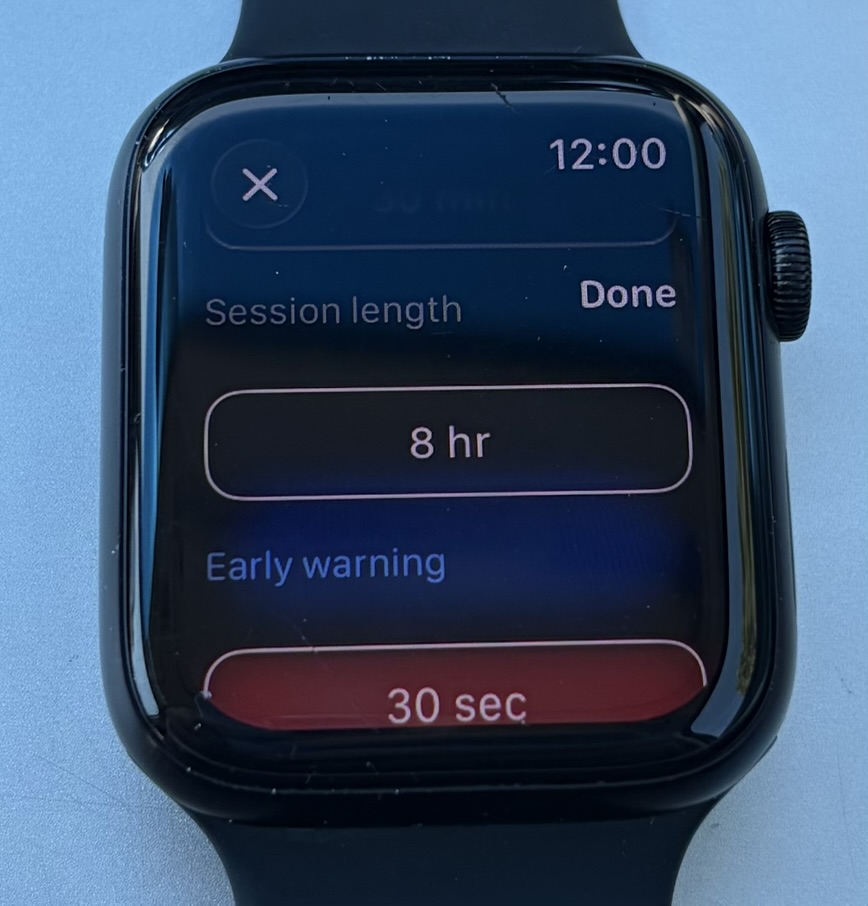
Three notification bursts before each report, spaced three seconds apart. Default lead is 30 seconds; adjust from 10 seconds to 2 minutes in Settings.
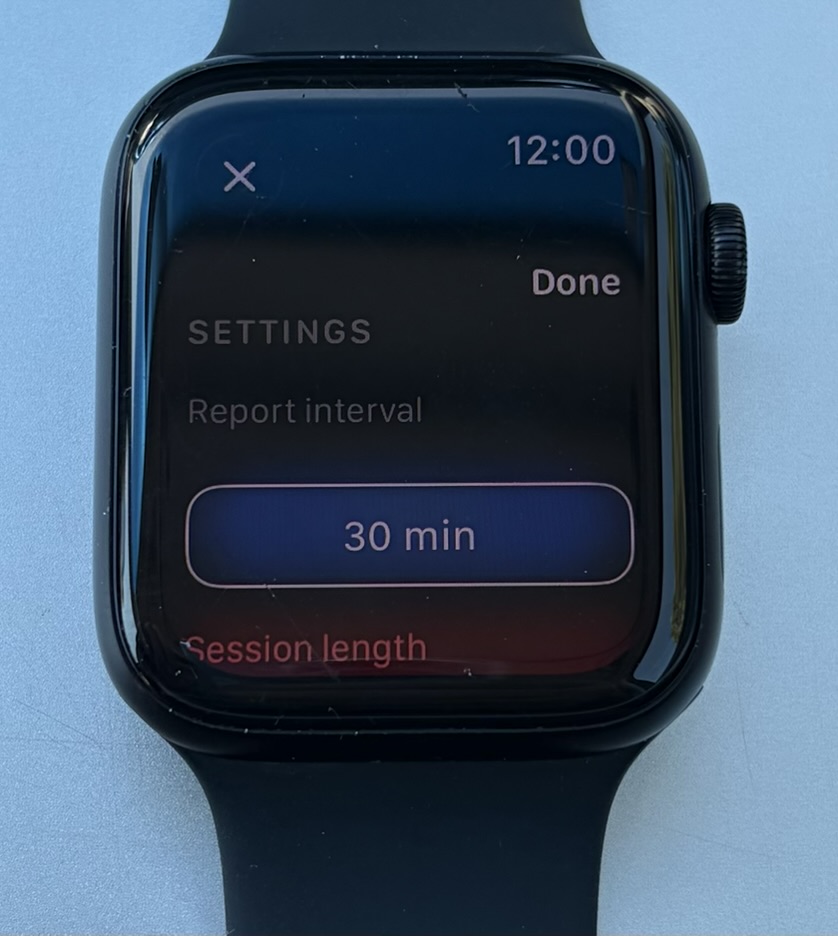
Report interval 10 min–2 hr (default 30 min). Session length 5–15 hours (default 8 hr) on the full app. Alert time is UTC by default, or the watch’s local time. Change settings mid-session — notifications reschedule immediately.
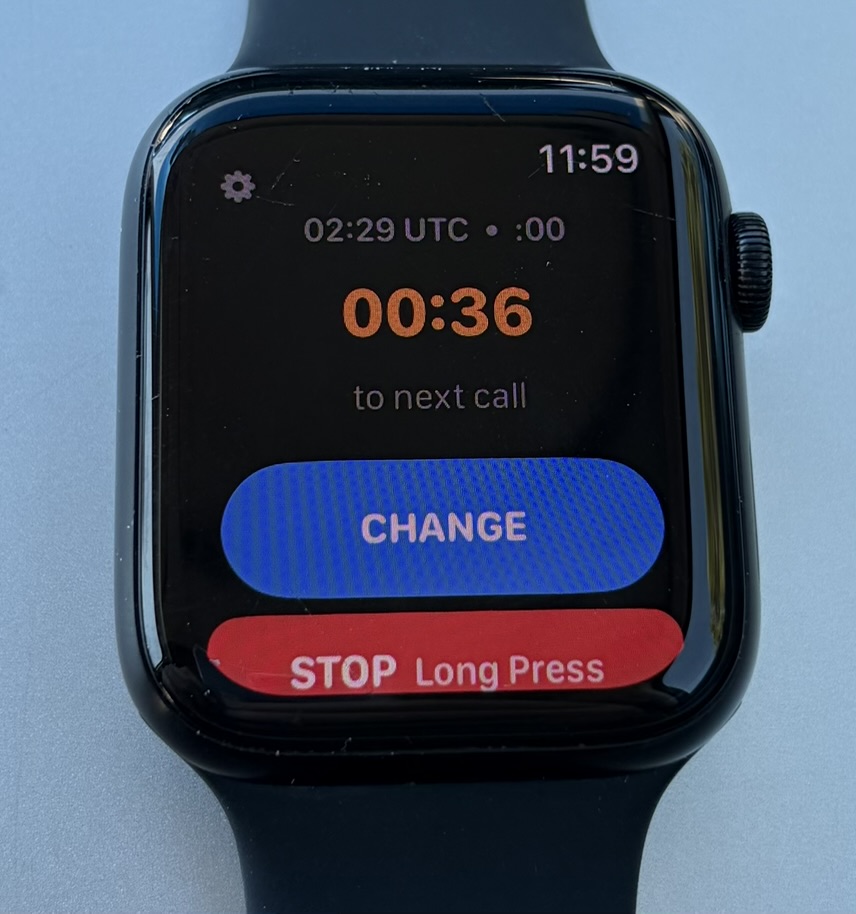
Live clock (UTC or Local), large MM:SS countdown to the next call, orange highlight inside two minutes. CHANGE minute without stopping; long-press STOP to end (guarded against accidental taps).
Pick your minute, run the session, change mid-sector, and tune the schedule — all from the watch. No phone required during flight.
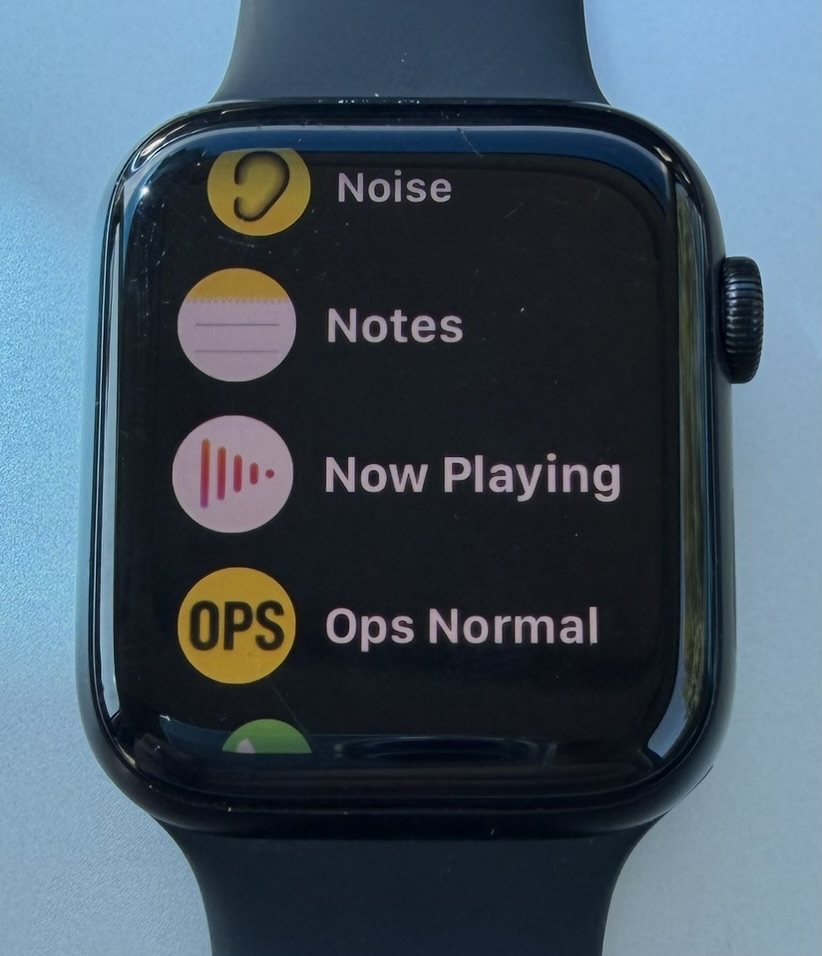
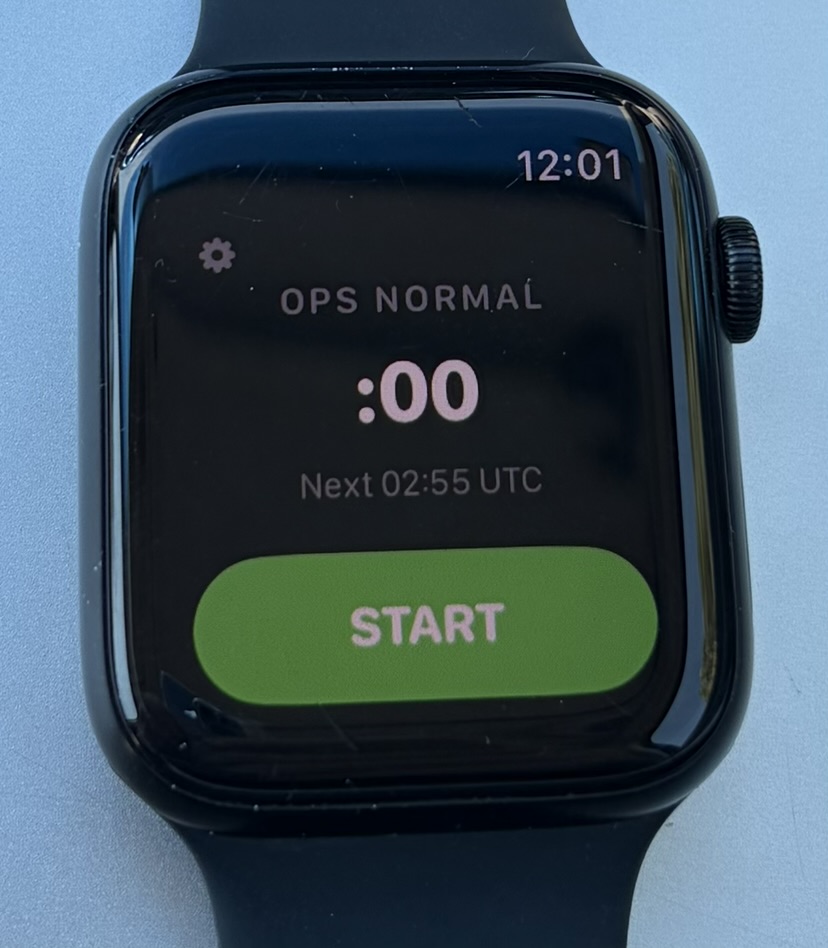
Nominate your minute
Turn the Digital Crown to your assigned ops-normal minute (e.g. :15). Times follow Settings → Alert time (UTC by default). Tap START.
Get warned before each call
The app schedules local notifications on your watch. Three bursts fire before every report time on your chosen interval.
Watch the countdown
The running screen shows time to the next call. When it hits 00:00, that report minute has arrived; the next cycle becomes the target automatically.
Adjust or stop when the sector ends
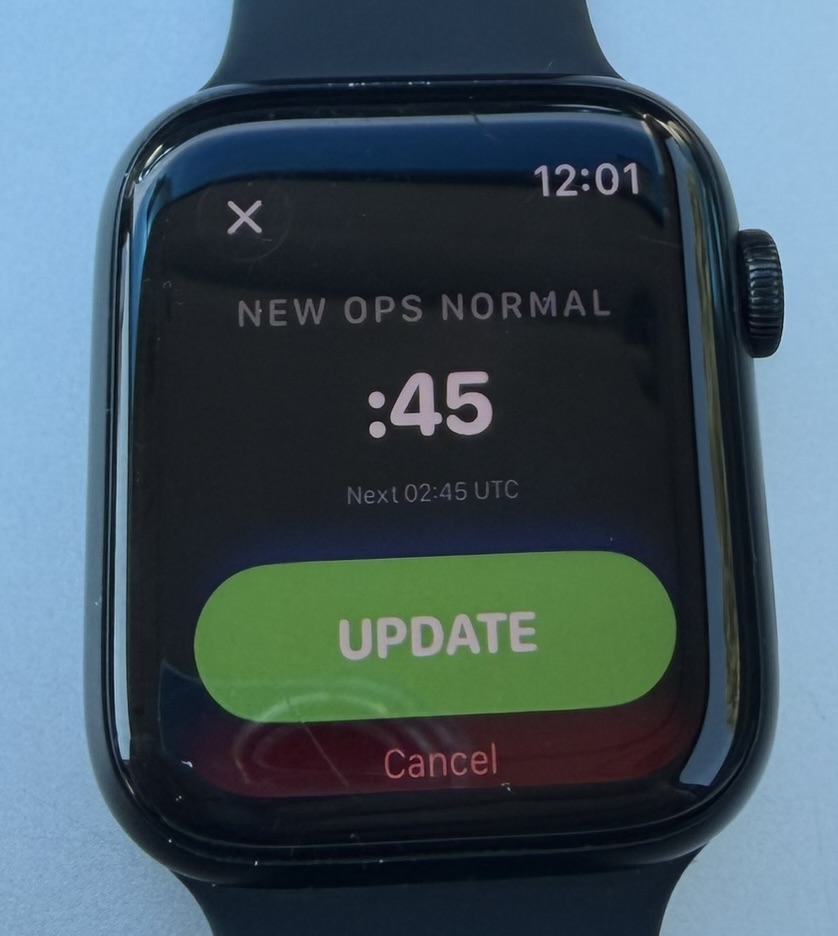
Tap CHANGE if ATC assigns a different minute. Long-press STOP (~0.6 s) when finished — short taps are ignored on purpose.
| Setting | Default | Range |
|---|---|---|
| Report interval | 30 minutes | 10 min – 2 hr (5 min steps) |
| Session length | 8 hours | 5 – 15 hours |
| Early warning | 30 seconds | 10 sec – 2 min (10 sec steps) |
| Alert time | UTC | UTC or Local (watch time zone) |
| Minute picker step | 5 minutes | :00 → :05 → :10 … wraps both ways |
| Warning pattern | 3 bursts | 3 seconds apart before each report |
Open Settings from the gear icon (top-left) on setup or running screens. Tap a row to edit; values commit only when you tap Set.
Minute :10, interval 30 min, session 8 hr, warning 30 sec, alert time UTC:
If you start mid-cycle, the first report is always the next future occurrence of your minute — never a time already passed.
Apple Watch running watchOS 26 or later. A companion iPhone app container is included for App Store distribution; all timing runs on the watch. Notifications must be allowed for pre-report wrist alerts. No account, no cloud — settings and session state stay on your watch.
Ops Normal Timer is a watch reminder. It is not a substitute for approved communications procedures or ATC instructions.