
Quickstart
You need a Smart TV that can mirror a phone or iPad, and that device. The device can be the access point the TV joins. There is no extra server.
Set up once
-
Install Meal Ready
Install on the iPhone or iPad that will sit with the staff. The home-screen name is Meal Ready.
-
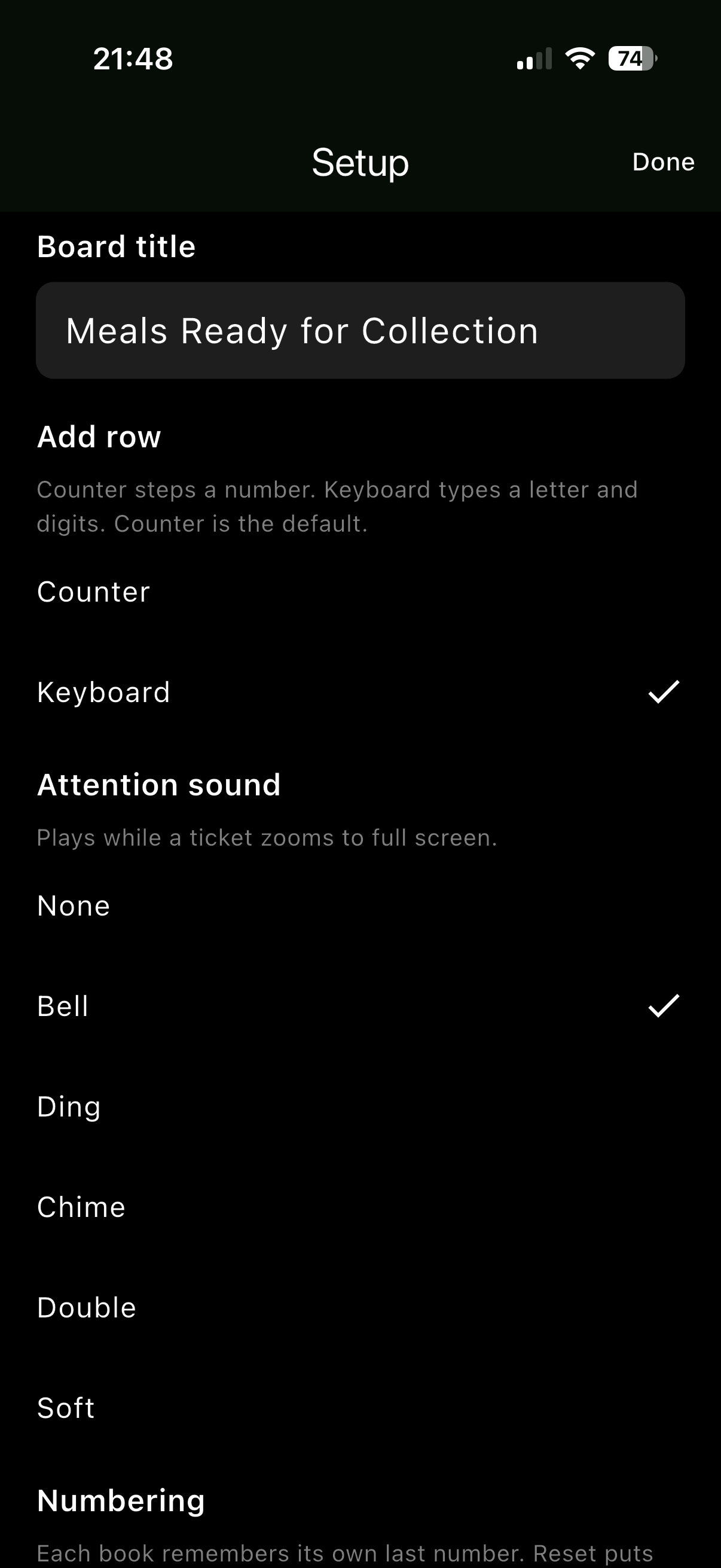
Check the books in Setup
Tap the gear (bottom left). Confirm the board title. Add, edit, or remove colour + letter books so they match the pads you actually use. There is no factory one-letter-per-colour rule — pair what is printed on your books.
-
Choose Counter or Keyboard
In Setup, Counter steps the last number for the chosen book (the default). Keyboard lets you tap a letter and then the digits. The choice stays until you change it.
-
Mirror to the TV
Put the phone or iPad and the TV on the same network — the venue Wi‑Fi, or a hotspot from the device itself so the TV joins that access point. Then mirror: Control Centre → Screen Mirroring (AirPlay), or the TV’s own mirroring, or Chromecast. Leave Meal Ready full screen in landscape.
During service
-
Write the order and split the ticket
Write the order on the ticket. Give one half to the customer and the other half to the kitchen (or whoever is filling the order).
-
When it is ready, put it on the board
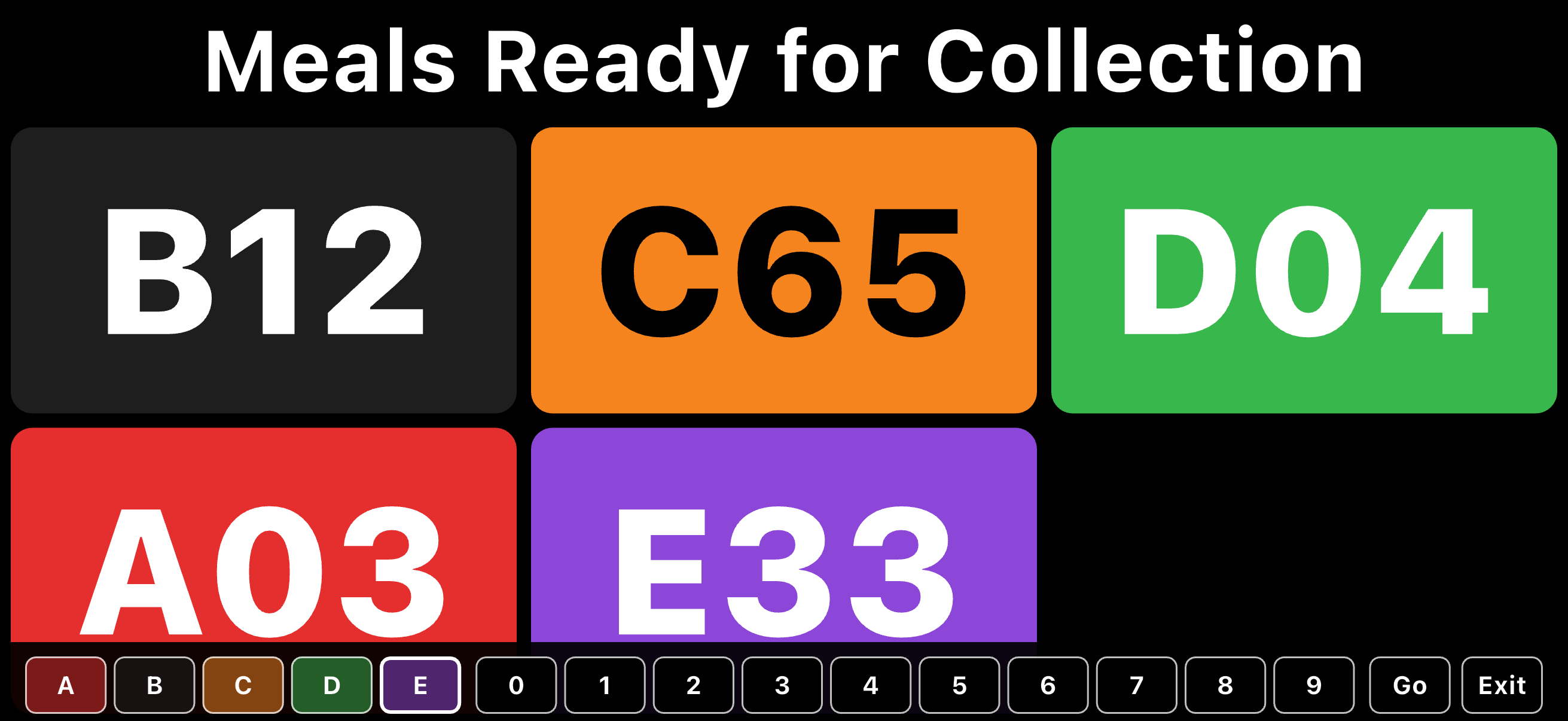
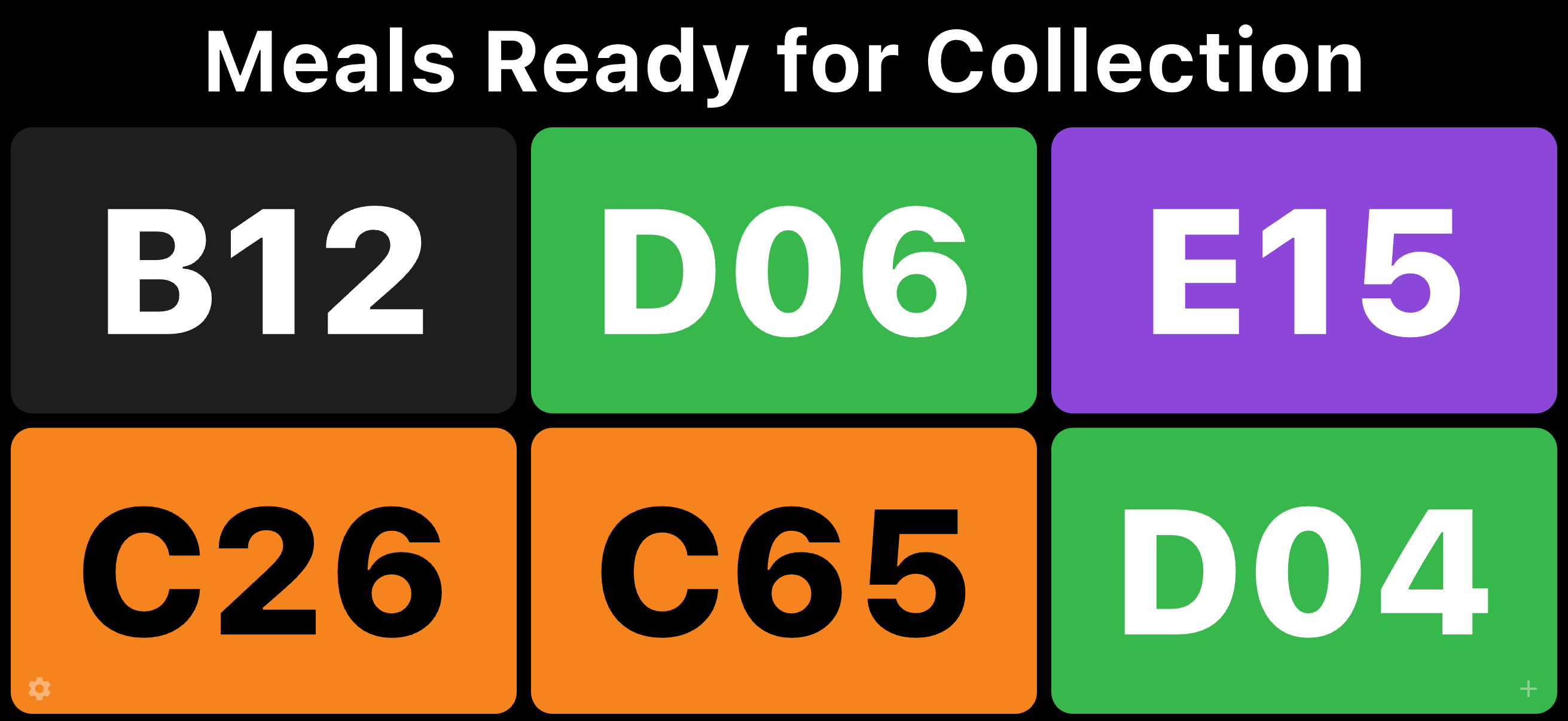
Keep the kitchen half with the order. Tap + (bottom right), enter that colour and number, tap Go. The customer sees the same colour and number on the TV.
-
Match the halves and hand it over
They bring their half to the counter. Staff confirm it matches the kitchen half, then hand over the order. Triple-tap the tile to clear it. A single tap only replays the zoom after a short wait.
Then
- The board holds up to 12 tickets (2×2, 3×2, 3×3, then 4×3).
- Reset last numbers in Setup if you start a new book at 01.
- Turn the attention sound off in Setup if the kitchen is already loud enough.
- Need help? Contact support.