
Quickstart
You need the app on your phone or tablet, and the PDFs you are allowed to search. There is no account. Search works offline.
Start a profile
-
Open Av Search
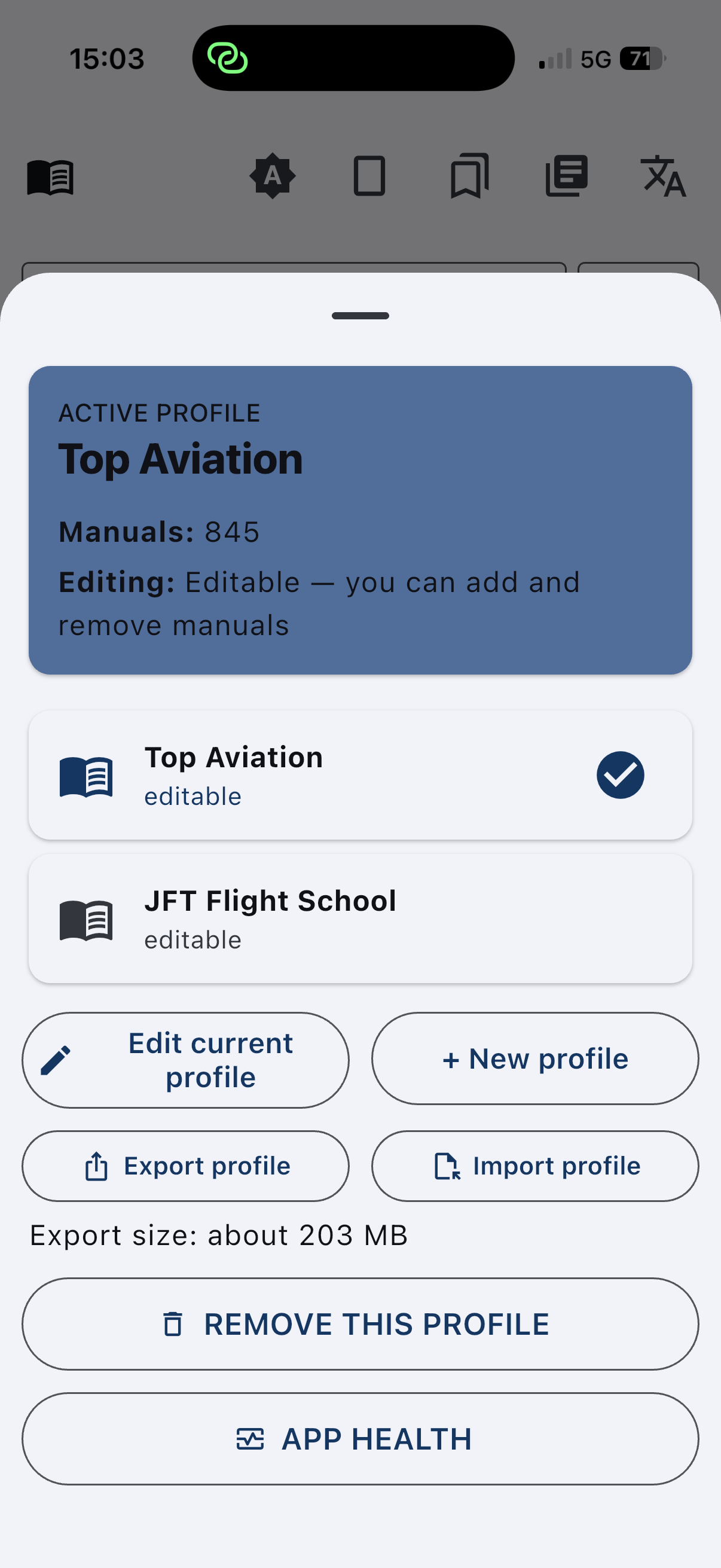
On the profile sheet, tap + New profile, or Import profile if you already have an
.avspfile. You can also open an.avspfrom Files, Mail, or AirDrop. -
Import your PDFs
Open the library and tap Import PDFs. Pick the files. They are copied into the profile on the device. The search index is built there.
-
Optional: more than one profile
Each profile is a separate set of manuals. The sheet shows which one is active. Export profile writes an encrypted copy before you remove one.
Search
-
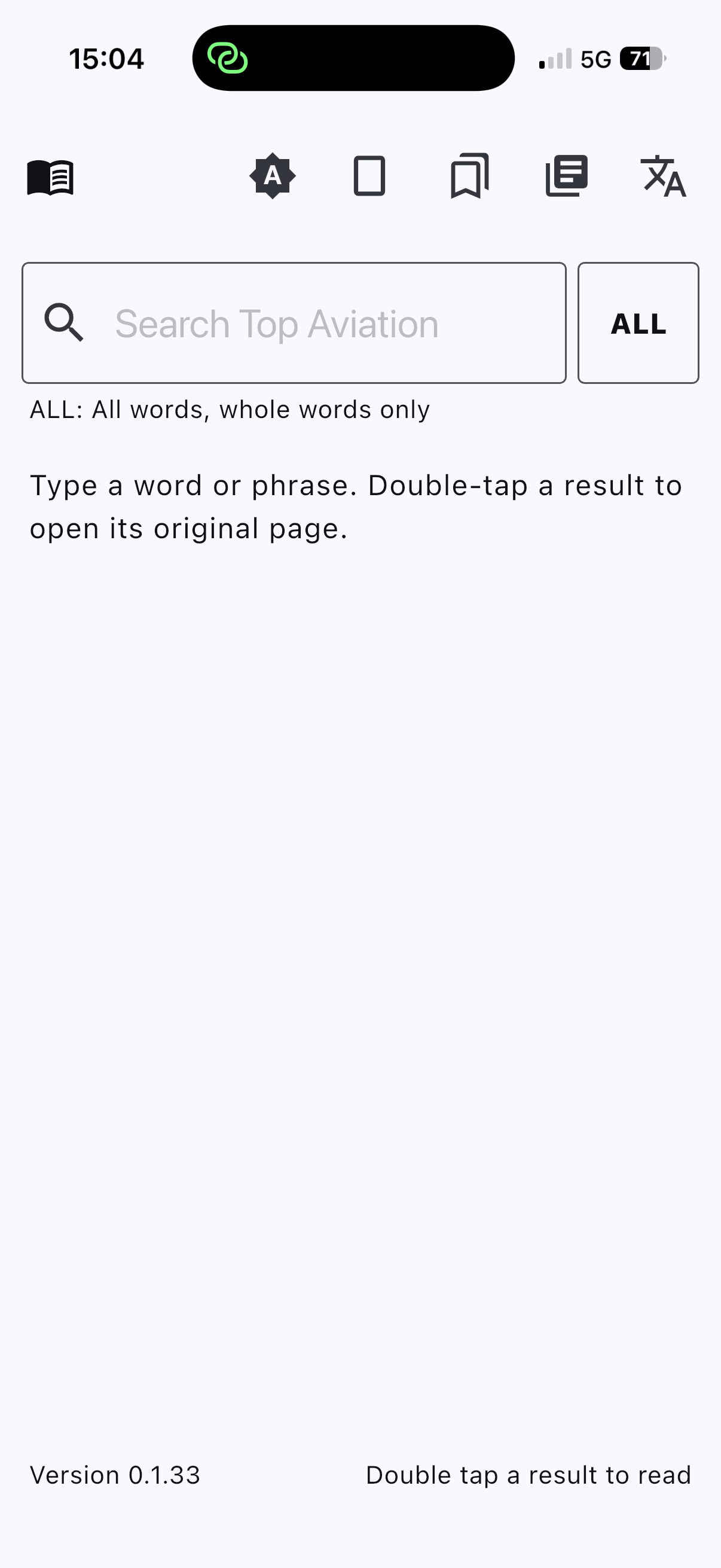
Type a word or a phrase
The field searches the active profile. Nothing is sent off the device.
-
Pick ALL, PART, ANY, or EXACT
ALL needs every word, each as a whole word. PART needs every word, and a word may be the start of a longer word, so press finds pressure. ANY needs any one of the words, as a whole word. EXACT needs the words together, in that order, ignoring capitals. Tap the button to move to the next mode.
-
Open the page
Double-tap a result to open its original page.
Keep a page
-
Bookmark it
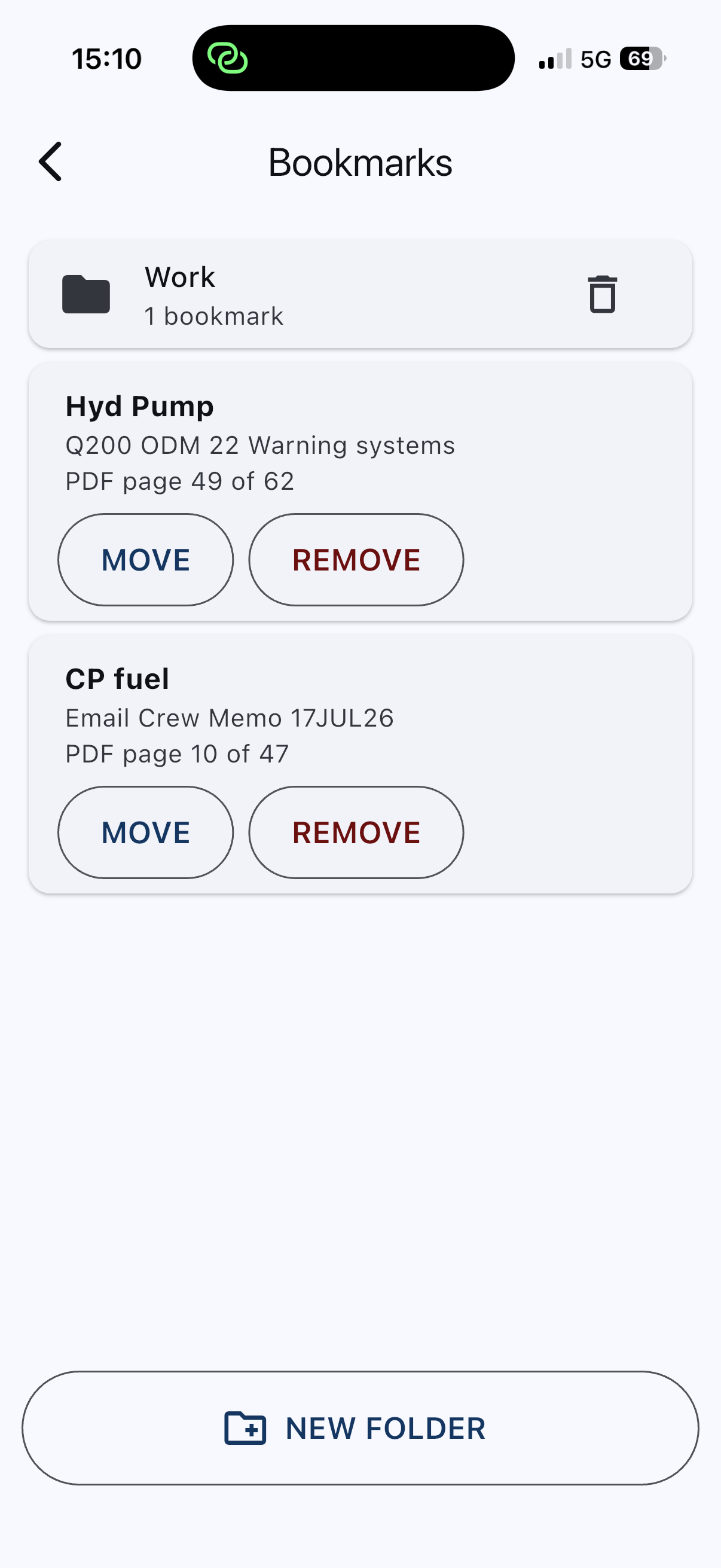
Save the page you want again. Bookmarks stay in the profile on the device.
-
Use a folder
New folder groups them. Move puts a bookmark in another folder. Remove takes one away.
Then
- Export profile makes an encrypted
.avspfile. The password needs at least 4 characters. Import asks for the same password. - The screen language does not rewrite the documents. It is the same fourteen languages as Time and Fuel.
- App Health can download an optional on-device model, and only after you confirm. The file comes from huggingface.co. Your manuals are not sent. Search does not need the model.
- Need help? Contact support.